

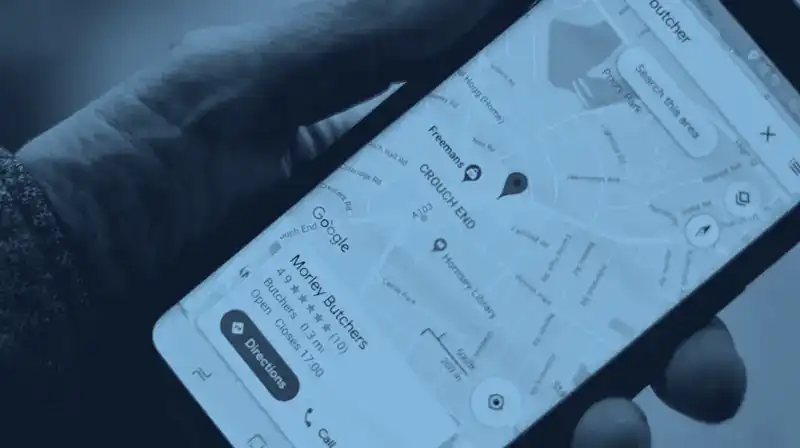
When someone searches for a hairdresser near them or a plumber in Kadıköy, Google shows a map with a few businesses before any website. To be on that map you need a Google Business Profile. It is free.
01What happened to Google My Business?
Google renamed the service in November 2021. It used to be Google My Business (in Turkish, Google Benim İşletmem). Today it is Google Business Profile. It does the same job: your name, address, phone, hours, photos and reviews appear in Google Search and on Google Maps.
There is no separate app any more. You manage the profile by searching for your business on Google or in the Google Maps app.
02Before you start
- A Google account that belongs to the business. Not an employee's personal account. If that person leaves, your access can go with them.
- The exact name on your sign. Google wants the name you use in the real world. Adding slogans, phone numbers, cities or words like "best" breaks its rules and can get the profile suspended.
- A real address. One customers can actually visit. Post boxes and virtual offices are not accepted.
- Phone number and, if you have one, your website.
- Opening hours. The regular hours you serve customers.
- Photos. Outside, inside and your work. Real phone photos are fine.
03Adding your business to Google Maps
First search for your business name and city on Google Maps. A customer or Google may have added it already. In that case you claim the existing listing instead of creating a new one.
If your business is not on Maps
- On a computer or in your phone's browser, go to business.google.com/add.
- Select "Add your business to Google".
- Enter the business name, category, address and contact details as the screens ask.
- Choose a verification option and complete the steps.
If your business is already on Maps
- Open the Google Maps app, search for your business and open it.
- Under "About", choose to claim the business, then "Manage now".
- Choose a verification option and complete the steps.
If customers do not come to you
If you go to your customers, like a plumber, a cleaner or someone working from home, Google asks you to hide your address and list the areas you serve instead. You can add up to 20 areas, and they should stay within about 2 hours' drive of your base.
04Verification, and what to do when it fails
Verification tells Google you are allowed to represent the business. You choose from the methods Google shows you. Not every method is offered to every business.
- Phone or text. A code arrives on the business number. It does not reach automated phone menus.
- E-mail. Follow the steps in the e-mail sent to the address shown.
- Video recording. You show your business in a short video. Google recommends it when you are eligible.
- Live video call. During business hours, at the business, with a Google support agent. You are asked to show signage or the street, your products or equipment, and something only a manager would have, such as the till, keys or a staff area.
- Postcard. A 5-digit code by post. It usually arrives within 14 days and expires after 30. While you wait, do not change the name, address or category and do not ask for a new code, or the first one stops working.
After you finish, Google may take up to 5 business days to review. If you have already verified your website in Google Search Console, some profiles are verified instantly.
If verification fails
- The "Verify" button appears again. Google could not finish. Try again or choose another method.
- Your video was not accepted. Open the notice and follow the instructions.
- Google asks for more information. This usually follows recent changes to your details. Provide what is asked and verify again.
- Nothing works. Contact Google Business Profile support.
Before trying again, check that the name and address on the profile match your sign exactly.
05Filling in the profile properly
Google says businesses with complete and accurate information are more likely to show up in local results. After verification, add:
- Category. The one that best describes what you do. Google asks you to use as few categories as possible, but the most accurate ones.
- Services or products. One by one, in the words customers search for.
- Hours. Including holidays.
- Photos and video. Outside, inside, your work and your team.
- Website. Your site's address, if you have one.
- WhatsApp. Verified profiles can add a WhatsApp link under chat, where the option is available in your region.
- Description. What you do and where, in plain sentences. Links are not allowed in the description.
06Appearing higher on Google Maps
Google ranks local results mainly on three things:
- Relevance. How well your profile matches the search.
- Distance. How far you are from the person searching.
- Prominence. How well known your business is. Google includes the websites that link to you, your number of reviews and your rating.
You cannot change distance, and Google says you cannot pay or ask for a better local ranking. What you can do:
- Verify the profile and keep it up to date.
- Ask your customers for reviews. More reviews and good ratings can help.
- Reply to every review, briefly and politely, the bad ones too.
- Add new photos and videos now and then.
- Connect the profile to a website, with exactly the same name, address and phone.
Never buy reviews, write your own, or give a discount for one. It breaks Google's rules.
07Common problems
Two listings for the same business
Each business should have one profile. Google does not show profiles it treats as duplicates. If you created a second one by mistake, you can remove it, which also deletes its content and managers. If Maps shows two listings for the same business, you can suggest an edit to merge them. If you moved, update the address instead of creating a new profile.
Someone else controls the profile
A former employee or agency may have created it. Find the business on Maps and request access. The current owner has 3 days to reply. If they do not, you may be able to claim ownership, but the option is not always offered.
The pin is in the wrong place
Edit the profile, open the location and select the pencil next to the business address. If Google cannot find the address, place the pin on the map yourself. Changes usually show within 10 minutes and can take up to 30 days.
The profile was suspended
Extra words in the name, links in the description and an address that does not match the real location are common causes. Fix the profile first, then use Google's appeal tool and submit an appeal. Documents such as a tax certificate, a business licence or a utility bill strengthen it, and the name and address on them must match the profile. Do not create a new profile for the same business while the appeal is open.
The business closed
Instead of deleting the profile, mark it temporarily or permanently closed in the hours section. A permanently closed business still appears in search but is clearly shown as closed. You can also remove the profile from its settings. Google says even then it cannot guarantee the business will never appear on Maps.